Monitor pricing pages for visual changes
Monitor pricing pages, checkout screens, and plan tables with visual comparison, approved states, and clear review ownership.
On this page
Use this when
- Wrong call to action after a campaign update.
- Shifted mobile comparison table that still returns HTTP 200.
- Stale discount label or crossed-out price.

Pricing pages break in ways uptime checks miss
A pricing page is not just a table. It carries plan names, discount labels, checkout links, usage limits, legal notes, and mobile layouts that often fail quietly after a content edit or release.
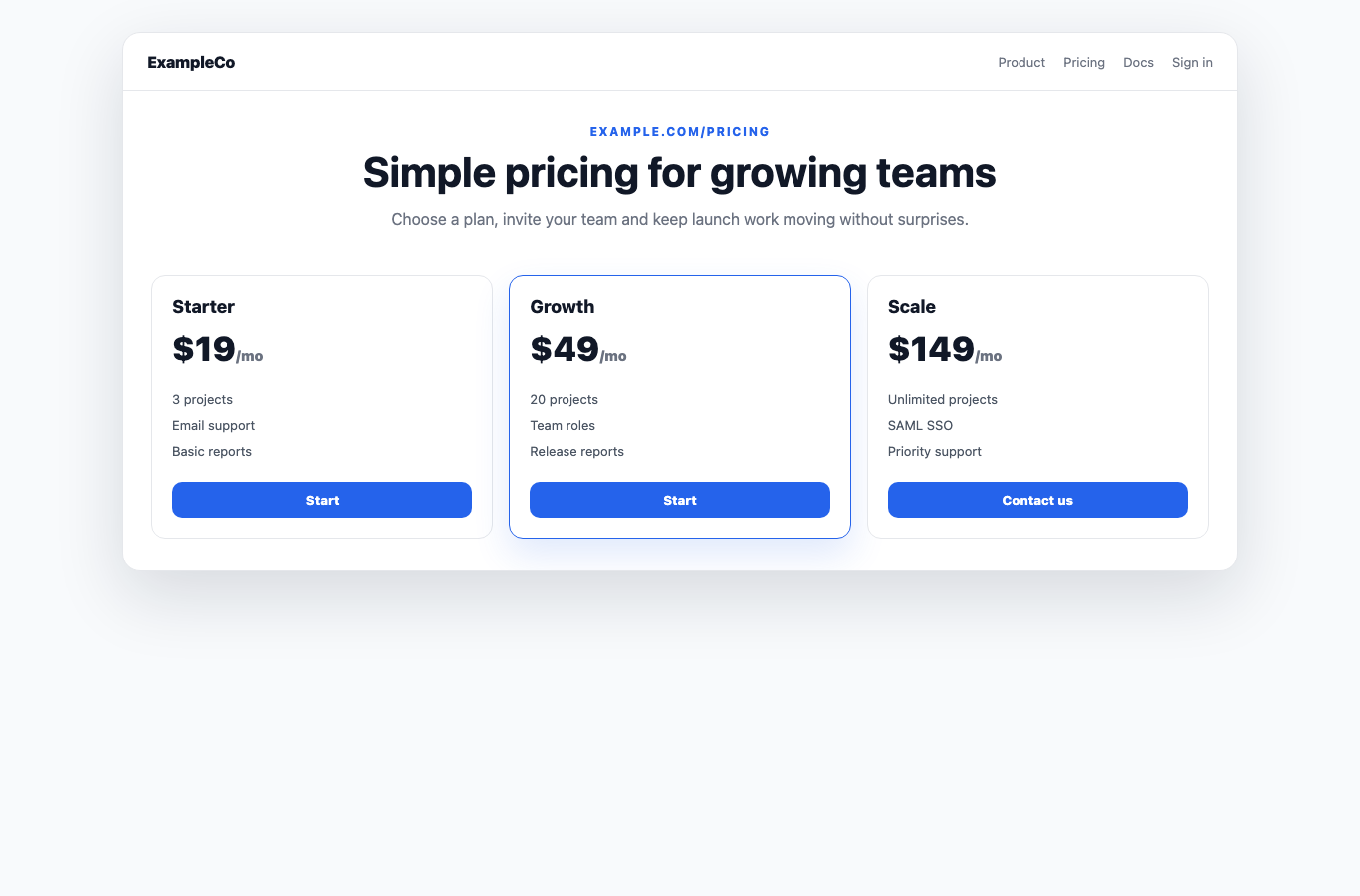
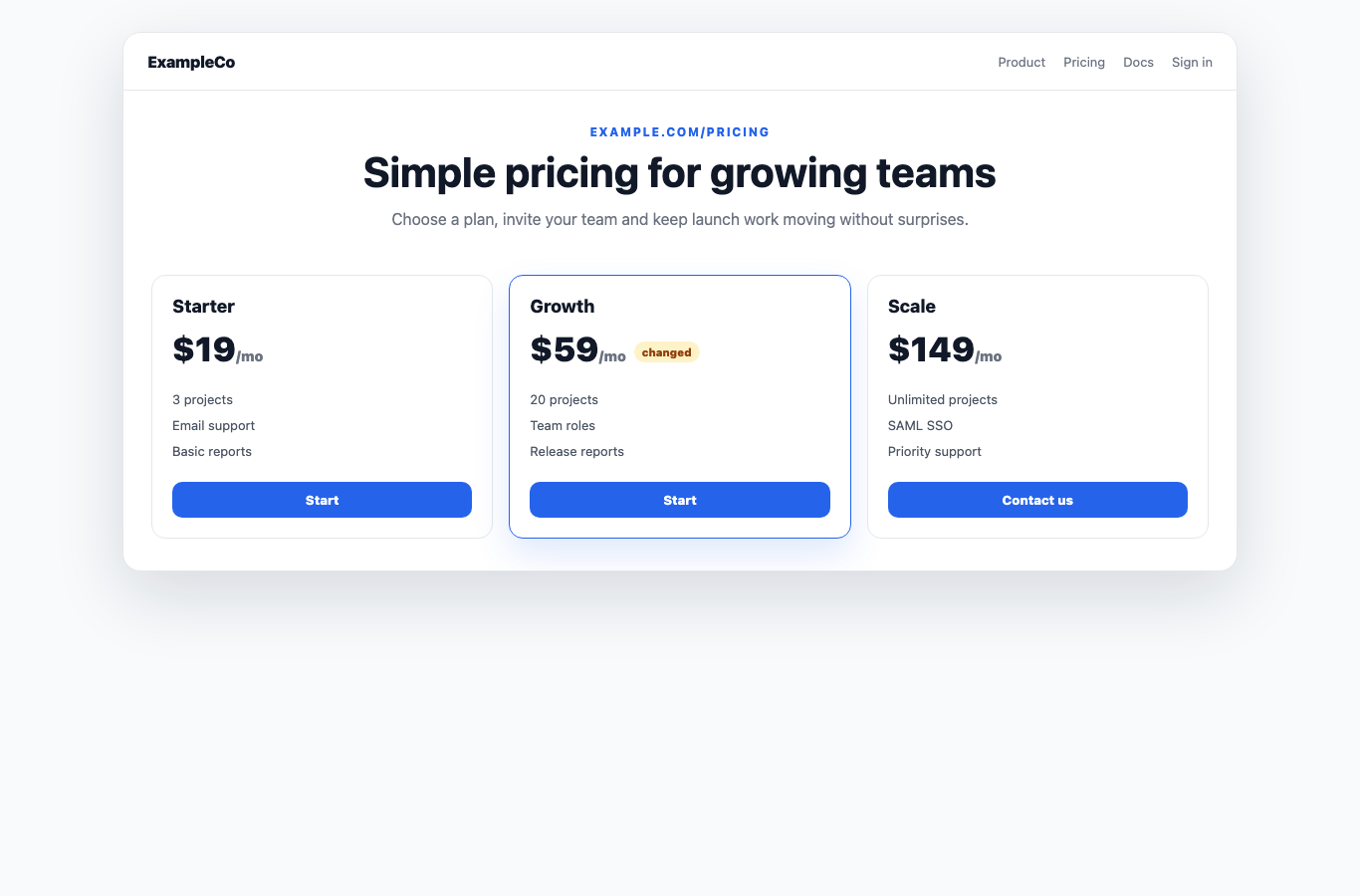
That is why pricing pages need page-level monitoring, not only uptime checks. A useful run should show the visible page, compare it with the approved state, and make it obvious whether the change is acceptable or a real issue.
What to monitor first on a pricing page
Do not start with every footnote. Start with the parts that affect trust, revenue, or support load: the headline price, plan comparison, discount state, usage limits, checkout link, and the first payment step.
If pricing changes by locale or market, cover the default locale first and then the markets where copy, currency, or legal notes differ. Concrete checks are easier to review than a vague promise to watch the whole page.
- Plan cards and included limits.
- Currency, billing period, and crossed-out prices.
- Checkout, sign-up, and contact-sales links.
- Mobile layout for long feature rows and sticky buttons.
Where RenderLog fits in the pricing workflow
A screenshot API can capture the page, but the team still has to manage storage, review state, and ownership. A repository-native visual test can catch UI diffs, but pricing decisions usually involve product, marketing, finance, and support, not just engineering.
RenderLog keeps the page capture, approved baseline, run history, and review decision together. That matters when several people need to inspect the same pricing change and agree whether it is ready.
- Capture a clean pricing page before a launch or price update.
- Turn the same setup into a recurring check once the review repeats.
- Approve the new state after a deliberate price or layout change.
- Keep evidence next to the product instead of in ad hoc folders.
Related links
Guide questions
Is pricing page monitoring the same as uptime monitoring?
What is the first pricing page check worth adding?
Ready to apply this on a real page?
Turn the next important page into a saved result, a reviewed baseline or a recurring check instead of leaving it as a one-off issue.