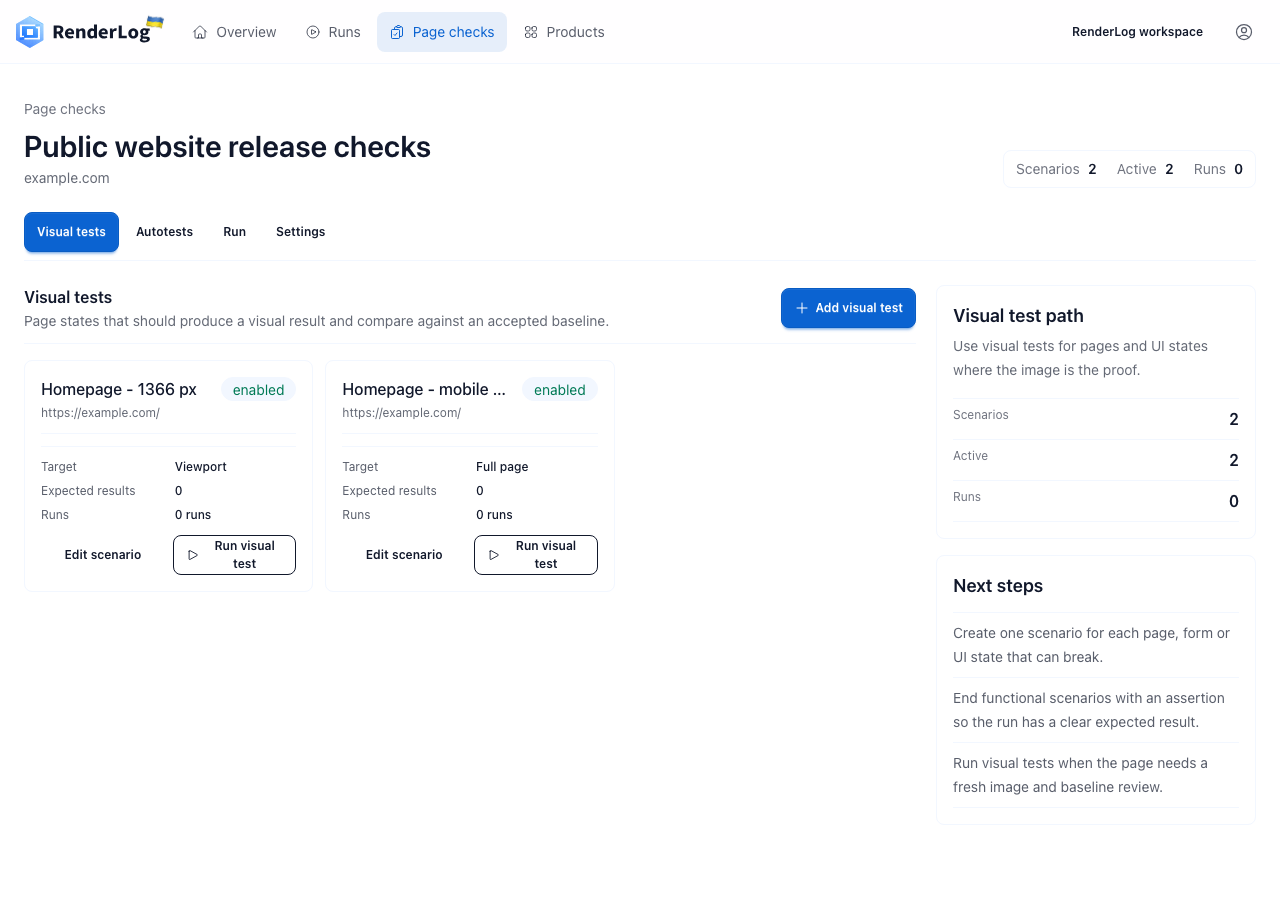
Selenium is often already responsible for valuable cross-browser and end-to-end workflows. Adding a screenshot at the right point can preserve visual evidence without replacing those assertions. The hard part is not calling the screenshot method. It is reproducing the same page state across local machines, browser-grid nodes and CI runs, then giving a person enough evidence to approve or reject a difference.
This guide uses a checkout summary as the running state. It covers explicit waits, browser capabilities, baseline naming, comparison boundaries and artifacts. It also draws a practical line between screenshots that belong inside the Selenium suite and production pages that are easier to review on a schedule in RenderLog.
Add a visual assertion only after the functional state is known
Drive the checkout to a named state, then assert the details that make it meaningful: product, quantity, total and enabled purchase button. The screenshot should record a state the functional test has already recognized. If navigation fails or the summary never appears, report that cause directly. Comparing a half-loaded page with a baseline produces a dramatic diff but hides the more useful failure.
Choose the visual scope from risk. An element capture is often best for a stable order summary because it excludes unrelated navigation and support widgets. A viewport capture is appropriate when the relationship between form, summary and call to action matters. Full-page stitching can introduce its own variation, so use it only when below-the-fold composition is part of the decision.
- Assert the business state before capturing it.
- Use element screenshots when unrelated page regions create noise.
- Use viewport captures when composition is the feature under review.
- Report navigation and readiness failures separately from visual differences.
Replace fixed sleeps with explicit, meaningful waits
Selenium documentation warns that timing races are a major source of flakiness. Wait for the summary to be visible, its loading indicator to disappear and the expected text or control state to arrive. A fixed two-second pause is simultaneously slower than necessary on a fast run and too short on a busy grid. An explicit wait fails with a condition that the team can understand.
Do not mix large implicit waits with explicit waits. Their combined behavior can create unpredictable timeout lengths and make diagnosis harder. Keep the readiness method close to the page object or workflow that understands the state. The visual helper should receive an already-ready element or driver rather than silently sleeping, scrolling and guessing whether the application has completed.
- Wait for visibility, text, control state or disappearance of a loader.
- Keep wait conditions close to the page behavior they describe.
- Avoid combining implicit and explicit waits.
- Let readiness failures stop the run before comparison.
Pin browser capabilities and rendering inputs
Record browser name and version, window size, device scale factor where available, operating-system image, locale, timezone, color scheme and installed fonts. A remote grid can route consecutive runs to nodes with different font packages or display settings. Those are different rendering environments even if the test name is identical, so they should not share one unqualified baseline.
Name baseline paths from the visual state and environment, not from an arbitrary sequence number. For example, include checkout-summary, Chrome, desktop viewport and locale. Keep test data fixed when it is not under review, and disable animation through product or browser settings. If cross-browser coverage matters, approve a baseline for each browser instead of forcing Firefox to match Chrome pixels.
- Version baselines by browser and meaningful viewport.
- Use consistent fonts and runner images across comparable runs.
- Keep locale, timezone and theme explicit.
- Do not treat different browser rendering as one shared expected image.
Keep capture, comparison and approval as separate responsibilities
WebDriver returns screenshot bytes. An image library can compare those bytes with a stored file, while a hosted service can add baseline management and review. Keep these layers visible in the implementation. A small capture helper should not also decide that a changed product state is acceptable. That decision belongs to a reviewer, pull request or dedicated approval workflow.
Select the comparison method for the defect you need to see. Pixel comparison is sensitive and transparent but exposes rendering noise. Perceptual approaches can tolerate small low-level changes but still need inspected examples and documented limits. Whatever method you use, retain the original images and a diff. A score without visual evidence is not enough to make a release decision.
- Let Selenium create the controlled state and capture.
- Let a comparison layer produce measurable evidence.
- Let a named person or review rule approve baseline changes.
- Retain source images even when a comparison service provides a score.
Design artifacts for a distributed browser grid
A failed grid job should upload the baseline, actual screenshot, diff, browser capabilities, current URL, test log and any relevant console or network evidence. Use collision-safe paths because multiple browsers and parallel workers may capture the same named state. The result should survive after the remote session closes; a screenshot left only on a grid node is effectively lost.
Separate infrastructure failure from completed comparison. A disconnected node, stale element or timeout is not a visual regression. A completed capture with a changed summary is. Track those categories independently so the team can see whether reliability work or product investigation is needed. Retrying every visual failure without classification can erase intermittent evidence and make the suite look healthier than it is.
- Upload artifacts before the remote session is destroyed.
- Include browser capabilities and state name in artifact metadata.
- Use unique paths for parallel workers.
- Do not convert grid or readiness failures into baseline updates.
Use RenderLog when the page, not the Selenium run, is the asset
Selenium remains the right owner for a private checkout flow that needs authentication, seeded data and functional assertions. A public partner page, pricing page or documentation route may only need repeat capture, visual history and a reviewer outside the test team. RenderLog can save that URL, run it on a schedule or through an API and present baseline, current result and diff together.
Split work by outcome rather than tool preference. Keep release-gating user journeys in Selenium. Put production-page monitoring in a shared review surface when it must continue independently of repository changes. A team can send a saved RenderLog run after deployment while preserving Selenium for pre-release coverage. Each check should have one named owner and a defined response to change.
- Keep authenticated and data-rich release flows in Selenium.
- Use scheduled checks for public pages that change outside code releases.
- Trigger a saved RenderLog run from deployment automation when useful.
- Avoid duplicate checks that lead to the same owner and action.
Selenium comparison library, screenshot API or RenderLog?
The useful boundary is the owner of state and review. Selenium is strongest when the screenshot belongs to a browser workflow; a shared service is stronger when the page itself needs ongoing review.
| Decision | Selenium comparison | Screenshot API | RenderLog |
|---|---|---|---|
| Best fit | Existing browser journey or grid suite | Programmatic capture without review | Saved production-page checks and history |
| State control | WebDriver flow, fixtures and page objects | Request options and caller orchestration | Saved scenarios, schedules and API-triggered runs |
| Comparison | Library or external visual service | Implemented by the caller | Baseline, current image and diff in one result |
| Typical owner | QA automation and engineering | The calling application | QA, product, operations, agency or client |
A minimal Selenium visual evidence workflow
These examples keep explicit readiness, screenshot capture, comparison and optional shared monitoring visible as different steps. Choose the image library and storage model that match your language and CI environment.
tests/pricing-visual.mjs
import { writeFile } from "node:fs/promises";
import { Builder, By, until } from "selenium-webdriver";

const driver = await new Builder().forBrowser("chrome").build();
try {
  await driver.manage().window().setRect({ width: 1366, height: 900 });
  await driver.get("https://example.com/pricing");
  const heading = await driver.findElement(By.css("h1"));
  await driver.wait(until.elementTextIs(heading, "Pricing"), 10_000);
  const image = await driver.takeScreenshot();
  await writeFile("artifacts/pricing-current.png", image, "base64");
} finally {
  await driver.quit();
}
Comparison boundary
const result = await comparePngFiles({
  baseline: "baselines/pricing-chrome-1366.png",
  current: "artifacts/pricing-current.png",
  diff: "artifacts/pricing-diff.png"
});

if (result.changedPixelRatio > 0.001) {
  throw new Error("Visual difference needs review");
}
Saved-page handoff
curl -X POST https://renderlog.com/api/check-suites/suite_01J/runs \
  -H "Authorization: Bearer rl_live_xxx" \
  -H "Content-Type: application/json" \
  -d '{"format":"png","labels":{"source":"selenium","commit":"8f4a7f2"}}'
Primary references used in this guide
Use the Selenium documentation for current WebDriver behavior and browser options. The workflow guidance here focuses on reproducible state, diagnosable artifacts and review ownership.
Continue with a visual testing workflow
Visual regression testing guide
Choose reproducible states, useful thresholds and baseline ownership.
Cypress visual testing
See the same decisions in a repository workflow built around Cypress.
Playwright visual testing
Use built-in screenshot assertions with stable CI artifacts.
Website screenshot API
Create one-off or saved page captures and retrieve their artifacts.
Compare visual regression tools
Shortlist repository, component and shared-review products.
Give one public page a clear monitoring owner
Keep Selenium responsible for browser workflows, then save one production page in RenderLog when another reviewer needs scheduled captures, visible differences and a traceable baseline history.
Create a RenderLog workspace